
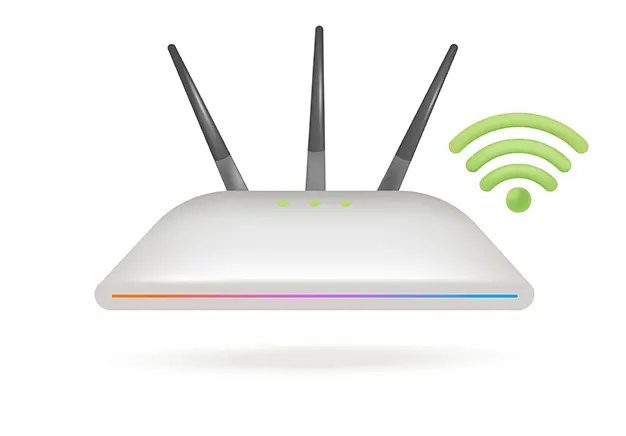
A WiFi router and modem gateway combines a modem and a wireless network router into one physical unit. The modem translates signals from your internet provider into digital data. The router directs this data to your local devices. This hardware manages all your household internet connections in a single device.
- Modems translate incoming signals from your internet service provider into usable digital data.
- Routers create a local wireless network to direct internet traffic between your connected devices.
- Combined gateways process external signals and distribute internet access through one physical box.
How Does a WiFi Router Work?
Routers direct internet traffic across your home. They manage data transfers using structured wifi architecture. The router assigns local IP addresses to devices using Dynamic Host Configuration Protocol (DHCP). Network Address Translation (NAT) maps local IP addresses to one public IP address. NAT records outbound requests in traffic tables to direct incoming data correctly. The router converts digital data packets into radio frequency (RF) signals. Internal antennas broadcast these RF signals to connected wireless client devices. Receivers in your devices decode the radio signals back into digital data.
What Is a Modem?
A modem is the physical hardware bridge between your internet service provider (ISP) infrastructure and your internal network. It converts external analogue signals from coaxial cables, copper lines, or fibre-optic connections into digital data that local devices process. Modems demodulate incoming signals from the ISP network into digital data. They modulate outgoing digital data into analogue signals for transmission across external lines. Optical Network Terminals (ONTs) act as modems on fibre-optic networks. Your local network cannot connect to the global internet without a modem.
How Does a Modem Work?
Modems process data signals between your home and your internet service provider (ISP). The ISP transmits incoming optical or coaxial signals to your modem premises. The modem demodulates incoming signals into digital Ethernet packets. Connected routers or computers receive these digital packets for processing. Your devices generate outbound digital data for external transmission. The modem modulates this outbound digital data into ISP-compatible signals. The modem transmits these modulated signals back to the ISP network.
Router vs Modem: What’s the Difference?
Modems connect your building to the internet, while routers distribute that connection to local hardware. Understanding their distinct roles helps when connecting routers to wireless access points across your local network.
| Feature | Router | Modem |
| Primary Function | Directs local network traffic and shares internet access | Translates external ISP signals into digital data |
| Network Layer | Operates at Layer 3 | Operates at Layer 1 and Layer 2 |
| Connects To | Connects to the modem, local devices, and switches | Connects to the external ISP line and the router |
| IP Assignment | Assigns private IP addresses to local client hardware | Receives 1 public IP address from the internet provider |
| Security/Firewall Role | Features built-in firewalls, packet inspection, and NAT | Provides no built-in network security or packet filtering |
Modem Router Combo Explained
A modem router combo incorporates both hardware functions into a single physical gateway. Internet service providers (ISPs) supply these all-in-one units to simplify residential installations. Combining signal translation and local routing reduces cable clutter. It also lowers initial equipment costs for average households. Integrated gateways often struggle under heavy network loads. Their internal processors possess limited computing power and memory. Connecting 20 or more active devices overwhelms the gateway’s routing table.
This bottleneck explains why Wi-Fi is not working properly during peak usage hours. Thermal throttling and signal interference further degrade performance. Users solve this performance bottleneck by connecting a standalone enterprise router. You must enable “Bridge Mode” on the ISP gateway first. Bridge Mode disables the combo unit’s internal router and wireless broadcasting. The gateway then functions purely as a passthrough modem. The dedicated enterprise router handles all IP assignment, traffic management, and security.
Types of WiFi Routers
Routing hardware ranges from basic single-band units to complex mesh wifi systems. Processing power, memory capacity, and radio frequency configuration directly dictate overall network performance under load.
Standard Home WiFi Routers
Standard home WiFi routers are standalone networking devices designed for small residential properties. They integrate a central processor, basic firewall software, and dual-band radio transmitters into one physical chassis. These units manage moderate internet traffic for light web browsing and daily streaming activities.
- Target Coverage: Single-story flats and homes under 1,500 square feet.
- Device Limit: Supports 10 to 15 concurrent device connections efficiently.
- Hardware Limitations: Basic processors overload when managing heavy residential wifi service and simultaneous high-bandwidth demands.
Dual-Band WiFi Routers
Dual-band WiFi routers are networking devices that broadcast wireless signals across two distinct radio bands. They operate on both 2.4 GHz and 5 GHz frequencies simultaneously. This design separates network traffic, balancing long-range connectivity with high-speed data transmission.
- 2.4 GHz Band: Provides wide coverage and penetrates solid walls easily, but offers lower data speeds.
- 5 GHz Band: Delivers faster data transfer rates with lower latency, but covers shorter distances.
- Traffic Management: Modern dual-band hardware automatically assigns devices to the optimal wifi frequency to reduce congestion.
Tri-Band WiFi Routers
Tri-band WiFi routers are high-performance networking devices that broadcast three separate wireless radio signals simultaneously. They add a second 5 GHz band or a dedicated 6 GHz band to standard dual-band setups. This additional band eliminates network congestion in homes with high device density.
- Band Allocation: Operates one 2.4 GHz band and two 5 GHz bands, or one 6 GHz band under WiFi 6E and WiFi 7 standards.
- Congestion Control: Dedicates separate bands to high-bandwidth activities like 4K streaming and online gaming to prevent signal degradation.
- Protocol Support: Leverages modern wifi protocols to automatically balance client loads across all three available radio frequencies.
Portable WiFi Routers
Portable WiFi routers are compact, battery-powered networking devices designed to create secure personal wireless networks on the move. They convert cellular data signals from SIM cards or public wired connections into private Local Area Networks (LANs). These devices provide encrypted internet access for multiple wireless clients while travelling.
- Cellular Connectivity: Integrates 4G or 5G SIM card slots to broadcast high-speed mobile broadband anywhere.
- On-the-Go Security: Encrypts internet traffic over public hotel or venue networks to protect personal data.
- Travel-Ready Design: Uses internal rechargeable batteries and lightweight frames for mobile operation.
Enterprise & Business Routers
Enterprise and business routers are commercial-grade networking devices built for maximum uptime and security. Brands like Cisco and Ubiquiti design them for high-data-traffic environments. They manage hundreds of simultaneous connections without performance loss.
- High Connection Capacity: Supports hundreds of active users across corporate offices. Ideal for deployment as wifi for hotel guests.
- Advanced Security: Features multi-WAN failover, VPN gateways, and VLAN segmentation. Includes built-in intrusion prevention systems.
- Scalable Architecture: Integrates with managed access points and outdoor directional antennas. Delivers reliable commercial Wi-Fi service across wide properties.
Important WiFi Router Specifications
Key hardware specifications dictate overall wifi performance, processing stability, and network bandwidth.
- CPU Core Count: Multi-core processors handle Network Address Translation (NAT) and firewall tasks without slowing down speeds.
- RAM Size: Higher memory capacity allows the router to process dense device connections simultaneously.
- WAN Port Ethernet Speeds: Multi-Gigabit WAN ports prevent hardware throttling on gigabit fibre connections.
- MIMO Stream Counts: Higher spatial streams allow simultaneous data transmission to multiple devices.
Dual-Band vs Tri-Band Router: Which Is Better?
Dual-band routers suit standard homes, while tri-band routers manage high device density without speed loss. Tri-band units are especially effective when serving as the backhaul connection in a mesh wifi system.
| Feature | Dual-Band Router | Tri-Band Router |
| Number of Bands | 2 (One 2.4 GHz + One 5 GHz) | 3 (One 2.4 GHz + Two 5 GHz, or 6 GHz) |
| Max Device Capacity | 10 to 20 active client devices | 30 to 50+ active client devices |
| Best For | Small flats and light internet browsing | Large homes, 4K streaming, and online gaming |
| Price Tier | Budget to mid-range pricing | Premium pricing tier |
Router Placement & Installation Tips
Proper physical placement maximises signal strength and ensures reliable performance across your property. Follow these five placement rules for your local wifi deployment:
- Position the Router Centrally: Place the unit in the central area of your home. Central positioning distributes radio signals evenly in all directions.
- Elevate the Device: Install the router on a shelf or wall mount. Radio waves travel outwards and downwards from internal antennas.
- Avoid Metal Utility Boxes: Never store routers inside metal cabinets or enclosures. Metal structures act as Faraday cages, blocking radio waves completely.
- Clear Physical Obstructing Materials: Keep the device away from concrete walls, thick brickwork, and large mirrors. Dense materials create major Wi-Fi obstacles that degrade throughput.
- Ensure Proper Airflow Ventilation: Place the router in an open, well-ventilated space. Overheating triggers thermal throttling, reducing connection speeds and stability.
Router Security Features
Modern wireless hardware relies on robust security protocols to protect connected devices from cyber threats. Implementing proper network controls eliminates risks associated with unencrypted wifi security across your network.
- Enable WPA3 Encryption: Always select WPA3 encryption during your initial wpa3 router setup. WPA3 provides robust protection against offline password-guessing attacks.
- Isolate IoT Devices on Guest VLANs: Create a separate guest network for smart home devices. Isolated VLANs stop compromised IoT hardware from accessing your primary laptops and servers.
- Change Default Credentials: Update factory admin usernames and passwords immediately. Default login credentials make secure wireless router hardware vulnerable to unauthorised access.
- Configure WiFi Security Firewalls: Enable built-in Stateful Packet Inspection (SPI) firewalls. These wifi security firewalls inspect incoming traffic and block malicious network requests automatically.
- Disable Remote Management: Turn off external WAN management interfaces. Restricting administrative access to local Ethernet connections prevents remote hacking attempts.
Router Performance Problems & Troubleshooting
Hardware bottlenecks and radio interference often explain why Wi-Fi is not working properly during high-traffic periods. Implementing focused Wi-Fi optimisation restores throughput and stabilises performance across connected devices.
| Symptom | Cause | Solution |
| Speeds drop during high network usage | High bandwidth usage or saturated router CPU load | Enable Quality of Service (QoS) to prioritise traffic, or upgrade to a multi-core processor router to lower CPU load. |
| Frequent signal disconnections | Overheated hardware or wireless channel congestion | Relocate the router for better airflow, power cycle the unit, and switch to a less congested wireless channel. |
| Buffering on distant devices | Physical obstacles or weak coverage on the 5 GHz band | Move the device closer, switch to the 2.4 GHz band for better penetration, or add a mesh node to expand coverage. |
How to Choose the Right WiFi Router
Selecting the right router depends on your internet service provider (ISP) speeds and total connected devices. Running a wifi speed test helps identify your actual throughput so you can match your bandwidth to the correct hardware tier.
- Under 100 Mbps: A standard dual-band Wi-Fi 5 router handles basic browsing, email, and HD streaming for small homes
- 100 Mbps to 500 Mbps: Upgrade to a Wi-Fi 6 router to support multiple concurrent 4K streams and smart home tech without latency.
- 1 Gbps FTTP: Choose a Wi-Fi 6E or Wi-Fi 7 router with a 2.5 Gbps WAN port. Using an older Wi-Fi 5 router on a gigabit line creates a massive hardware bottleneck, wasting the speed you pay for.
- 1 Gbps+ Multi-Gigabit Fibre: Invest in a tri-band Wi-Fi 7 router featuring 10 Gbps ports and 4×4 MU-MIMO streams to maximise multi-gigabit connections fully.
WiFi Router Requirements for Different Environments
WiFi router requirements scale exponentially from single-family homes to high-density commercial buildings, making the right underlying wifi architecture critical. Compact apartments need dual-band units with smart channel selection to avoid interference from neighbours. Multi-story homes require mesh setups to carry signals through thick walls. Commercial spaces demand enterprise hardware with load balancing, VLANs, and multi-WAN failover for hundreds of users.
Home Router Requirements
Modern residential networks must support 15 to 30 smart devices, demanding reliable hardware that blends performance with household usability. High-capacity processors, robust parental filtering, and clean designs allow these gateways to sit comfortably in main living areas while delivering strong residential wifi service. High-gain omnidirectional antennas ensure reliable signals extend throughout living spaces and deliver seamless wifi for garden coverage for outdoor devices.
Office Router Requirements
Office network router deployment demands enterprise features to ensure business continuity and eliminate network downtime. Equipping your workspace with business router hardware guarantees a resilient commercial Wi-Fi service across all operational departments. Essential specs include multi-WAN ports for failover backup internet, isolated VLANs to separate sensitive departmental data, and Quality of Service (QoS) to prioritise critical video calls.
Large Building Router Requirements
In industrial, hospital, or hotel deployments, the router operates as a dedicated edge gateway rather than an all-in-one wireless access point. It routes heavy data loads across dozens of managed PoE switches and access points, providing robust infrastructure for industrial wifi service environments. Key requirements include 10G SFP+ fibre ports for high-speed backhaul, massive NAT throughput, and captive portal management essential when configuring reliable wifi for hotel guests.
FAQs
Do I need both a modem and a router for Wi-Fi?
Yes, you need both. The modem brings the internet signal into your home, while the router broadcasts that signal wirelessly to your devices. Many internet providers give you a single gateway box that combines both functions into one device.
Can I connect to the internet with just a modem?
Yes, but only for one device using an Ethernet cable. A stand-alone modem cannot broadcast Wi-Fi or connect multiple devices at once. You need a router to share the internet connection across your whole home.
What happens if I plug my PC directly into a modem without a router?
Your PC will get internet directly, but it will be fully exposed to public cyber threats without a router firewall. Only that single wired PC can connect, leaving no Wi-Fi for other devices. You must restart the modem so it assigns the public IP to your computer.
What are the different types of Wi-Fi routers available?
The main types are single-band, dual-band, tri-band, and mesh Wi-Fi routers. Dual-band and tri-band routers offer faster speeds by using multiple frequencies. Mesh systems use several units to cover large homes with a seamless signal.
What is a dual-band router?
A dual-band router broadcasts two separate wireless signals using 2.4 GHz and 5 GHz frequencies. The 2.4 GHz band offers longer range through walls, while the 5 GHz band delivers faster speeds for heavy streaming and gaming. Devices automatically connect to the best band available to reduce network congestion.
What is the difference between a home router and a business router?
Home routers focus on easy setup for a few household devices with basic security. Business routers handle hundreds of simultaneous connections using high-speed processing and advanced security features like VLANs
How do I secure my Wi-Fi router from hackers?
Change the default admin login and set a strong WPA3 network password. Keep your router’s firmware updated to patch security vulnerabilities. Disable remote management to block outside access to your network settings.