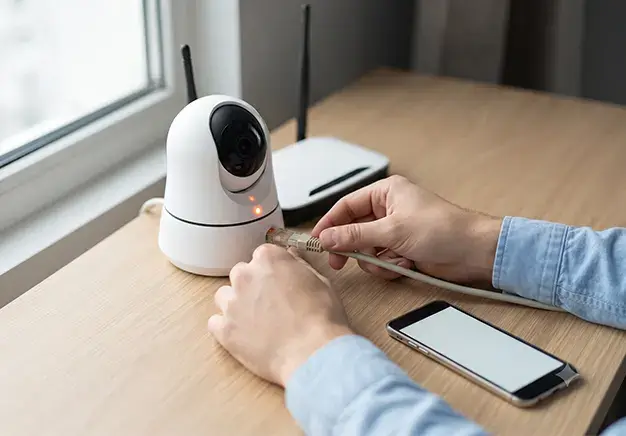
You can connect your NVR/DVR to a mobile phone by downloading your system’s dedicated app and scanning the P2P QR code. This simplifies linking CCTV to mobile setups. You can easily view security cameras on phone apps. Enjoy secure remote viewing anytime.
What You Need Before Connecting Your Phone
Before beginning the installation, you must gather a few network and system components. Preparing these essential items ensures a seamless link between your security hardware and smartphone. This checklist covers all necessary CCTV configuration parameters.
- Active Router Connection: Ensure your NVR/DVR connects directly to your internet router via an Ethernet cable.
- The Correct Mobile App: Download the specific manufacturer software required for your exact CCTV app setup.
- System Admin Credentials: Keep your main hardware password ready to complete the remote CCTV configuration.
- Network Stability: Confirm both your phone and recording system have stable internet access for a smooth CCTV mobile setup requirements check.
Method 1: Connecting via P2P Cloud & QR Code
A P2P connection simplifies remote access. It bypasses complex router setups. Follow these steps to complete the process.
- Open System Network Settings: Navigate directly to the main menu on your NVR/DVR. Select the network settings section.
- Locate the P2P Menu: Find and open the option labelled P2P or Cloud. Ensure the status indicator shows as online for successful p2p cctv setup mobile tracking.
- Scan CCTV QR Code: Open your downloaded security app on your smartphone. Choose the add device option and scan the CCTV QR code symbols on the monitor screen to link them instantly. This completes the core CCTV QR code setup workflow.
Method 2: Connecting via Port Forwarding & Static IP
This advanced method serves as a reliable legacy alternative. It works well if a strict firewall blocks your P2P cloud connection. To set it up, you must configure port forwarding rules inside your internet router settings. This action opens a direct communication pathway to your recording hardware.
Once your router configuration is complete, open your mobile security application. Choose the manual addition option instead of scanning a code. You must
Top Mobile Apps for CCTV Remote Viewing
Choosing the best app for CCTV camera systems depends heavily on your hardware brand. Industry standards dictate using official native software. For Hikvision hardware, you should use Hik-Connect. For Dahua equipment, DMSS is the correct platform. Generic or OEM systems frequently rely on software like BitVision or XMEye. Utilizing these official channels ensures a stable, optimized stream.
Opting for a dedicated manufacturer tool is always superior to generic third-party applications. Official software matches the precise firmware architecture of your recorder. This alignment guarantees optimal data security. It also enables full access to advanced features. These features include high-definition playback, multi-channel viewing, and instant motion alerts. Relying on an official Hik-Connect setup or DMSS mobile setup secures your stream against unexpected connection dropouts.
Troubleshooting: Why is My CCTV “Offline” on My Phone?
Finding your CCTV device offline on your phone screen is a common issue. It usually stems from a local network drop rather than hardware failure. When your CCTV app not connecting occurs, the breakdown is typically between your recorder and the internet router. Checking a few basic network parameters usually restores the connection quickly.
- Inspect the Physical Connection: Verify the physical Ethernet cable connecting your NVR/DVR directly to the internet router. Ensure the link lights on both ports are flashing green.
- Verify P2P Network Status: Access the system menu on your monitor. Check if the cloud status reads online. If a Hik Connect offline status shows, your local recorder is failing to reach the cloud server.
- Power Cycle Network Hardware: Reboot your internet router and the CCTV recording unit. This clears IP conflicts and refreshes the DHCP lease assigned to your security hardware.
- Review Mobile Data Permissions: Confirm that your smartphone app has active permissions to use cellular data. Strict device settings can block the application when you leave your home Wi-Fi network.
Need Professional CCTV Configuration in London?
If you have lost your admin passwords, changed your broadband router, or can’t get your system online, our London engineers can help. Setting up secure remote viewing requires precise network adjustments. Our specialist CCTV configuration service team resolves these technical roadblocks quickly. We restore your smartphone live feeds and update outdated device firmware.
We provide comprehensive support across the capital. Our engineers handle everything from quick network fixes to complete CCTV installation in London properties. We ensure your security cameras deliver stable, encrypted remote access. Contact our team today for fast, professional CCTV repair services to get your mobile monitoring back online.
Frequently Answer Question
How do I connect my CCTV to my mobile phone?
You can connect your NVR or DVR to a mobile phone by downloading your security system’s dedicated official application. Once the app is installed, navigate to your recorder’s network settings on your monitor to display the system’s P2P Cloud menu. Simply use the mobile app to scan the on-screen QR code to instantly link your live camera feeds for secure remote viewing.
Where is the QR code on my CCTV?
The CCTV QR code is typically found inside the main system menu on your monitor by navigating to Settings > Network > P2P (or Cloud). Alternatively, you can find a physical copy of this code printed on a sticker located on the bottom or side of your physical NVR/DVR recorder box.
Why does my CCTV app say the device is offline?
Your CCTV app says “offline” because your recorder has lost its connection to the internet. This is usually caused by a loose Ethernet cable, an IP address conflict after changing your router, or a temporary local network dropout.