
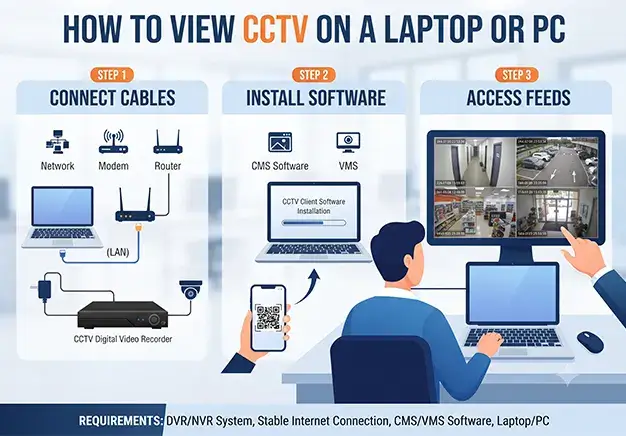
You can view your CCTV on a laptop or PC over a network. Use a web browser via the NVR’s IP address. Alternatively, install dedicated VMS desktop software. Connect both devices to the same network. Input the system’s credentials. Stream your security footage live.
Prerequisites for PC & Laptop Viewing
Proper CCTV configuration requires the correct network setup. You cannot simply plug a cable from your recorder into your computer.
- Network Connection Only: Laptops connect to your CCTV system via the network. You do not use an HDMI cable.
- The NVR IP Address: You must know the specific network IP address of your recorder.
- NVR Admin Credentials: You need the correct admin username and password.
- Same Local Network: Both your laptop and the NVR must connect to the same LAN.
Method 1: Viewing CCTV via Web Browser
You can access your cameras directly through a web browser. This method requires no extra downloads. Follow these steps to log in.
- Open Your Browser: Launch Google Chrome, Microsoft Edge, or Safari on your laptop.
- Enter the IP Address: Type your NVR’s local IP address into the URL bar. For example, enter 192.168.1.100 and press Enter.
- Load the Login Page: The browser will load your CCTV system’s portal.
- Input Credentials: Enter your system’s admin username and password.
- Access the Stream: Click Login to view your live camera feeds.
Overcoming Browser Plugin Issues
Older NVR systems rely heavily on ActiveX plugins to stream video. These legacy systems require Internet Explorer or Microsoft Edge running strictly in IE Mode to function. Without this specific configuration, the video stream will fail to load in standard modern browsers.
In contrast, modern IP cameras and newer NVRs utilise HTML5 technology. This allows the system to stream video natively without any third-party plugins. As a result, you can view your live feeds smoothly on modern browsers like Google Chrome, Safari, and Firefox. This advancement represents a major shift in modern CCTV technology.
Method 2: Viewing via CMS / VMS Desktop Software
Dedicated Video Management Software (VMS) or Central Management Software (CMS) offers a more robust solution than standard web browsers. This method is ideal for business operations. The desktop software easily supports complex multi-site viewing from a single dashboard.
Furthermore, VMS platforms can display massive 64-camera grids simultaneously without crashing. This software also simplifies the process of searching and exporting video playback. It provides reliable performance and advanced control for commercial CCTV security management.
Top VMS Software by Brand
Major security manufacturers provide proprietary platform software tailored specifically to their own hardware ecosystems. Leading enterprise utilities include iVMS-4200 for Hikvision systems and SmartPSS for Dahua equipment. If you operate a mixed-hardware environment, you can utilise generic ONVIF-compatible viewers to bridge different brands onto a single screen. Windows remains the default platform for these deployment tools. Consequently, Mac users must carefully verify compatibility and download specific macOS versions of these packages to ensure stable desktop operation.
Remote Viewing: Accessing CCTV Away from Home/Office
To view your cameras from an external location, your connection must shift from a local area network (LAN) to a wide area network (WAN). Modern surveillance systems have simplified this remote access process significantly. You no longer need to configure complex port-forwarding rules on your router.
Instead, you can securely log into your desktop VMS software using P2P cloud accounts. This setup typically requires scanning a QR code or entering a unique device serial number. The cloud infrastructure establishes a direct secure bridge. This allows you to monitor your property from any internet connection worldwide.
Troubleshooting: Why Can’t I See My Cameras on My Laptop?
Connection failures usually happen due to basic network misconfigurations. If your software loads but the screen stays blank, check these common network errors first.
- IP Address Conflict: Your NVR and laptop might be operating on different network subnets. If your laptop is on 192.168.1.X and the NVR is on 192.168.0.X, they cannot communicate.
- Firewall Blocks: Windows Defender or third-party antivirus software frequently blocks incoming VMS traffic. You must manually allow the software through your firewall settings.
- Incorrect Port Settings: You might be targeting the wrong port in your browser or software. For example, the system will fail to connect if you use port 80 when the NVR requires port 8000.
Professional Network & CCTV Configuration in London
If IP addresses, browser plugins, and firewalls are keeping your business offline, our London IT and CCTV engineers can configure your entire office network. We eliminate complex setup issues to deliver seamless, secure remote viewing. Contact our specialist team today to streamline your commercial surveillance architecture.
Frequently Answer Question
Can I connect my laptop to my CCTV NVR?
Yes, you can connect your laptop to your CCTV NVR, but you must do it over a network, not by plugging an HDMI or VGA cable into your laptop.
How do I access my NVR via a web browser?
Connect your laptop and NVR to the same network. Type the NVR’s IP address into your browser’s URL bar. Press Enter and log in with your admin details. Install any required video plugins if prompted.
Why does my CCTV say ” Please install plugin”?
Your browser needs a specific software extension to decode and display the live video stream. Older systems rely on legacy plugins like ActiveX, which modern browsers block by default. To fix this, you must download the plugin from the on-screen link or open the page using Microsoft Edge in “Internet Explorer Mode.”